
This guide explains how to download an offline map to view detailed mapping without phone signal. Access all 607 OS leisure maps offline by downloading a custom map with an OS Maps Premium subscription. This saves phone battery and mobile data, and lets you follow and record routes out of signal range.
Download Offline Maps
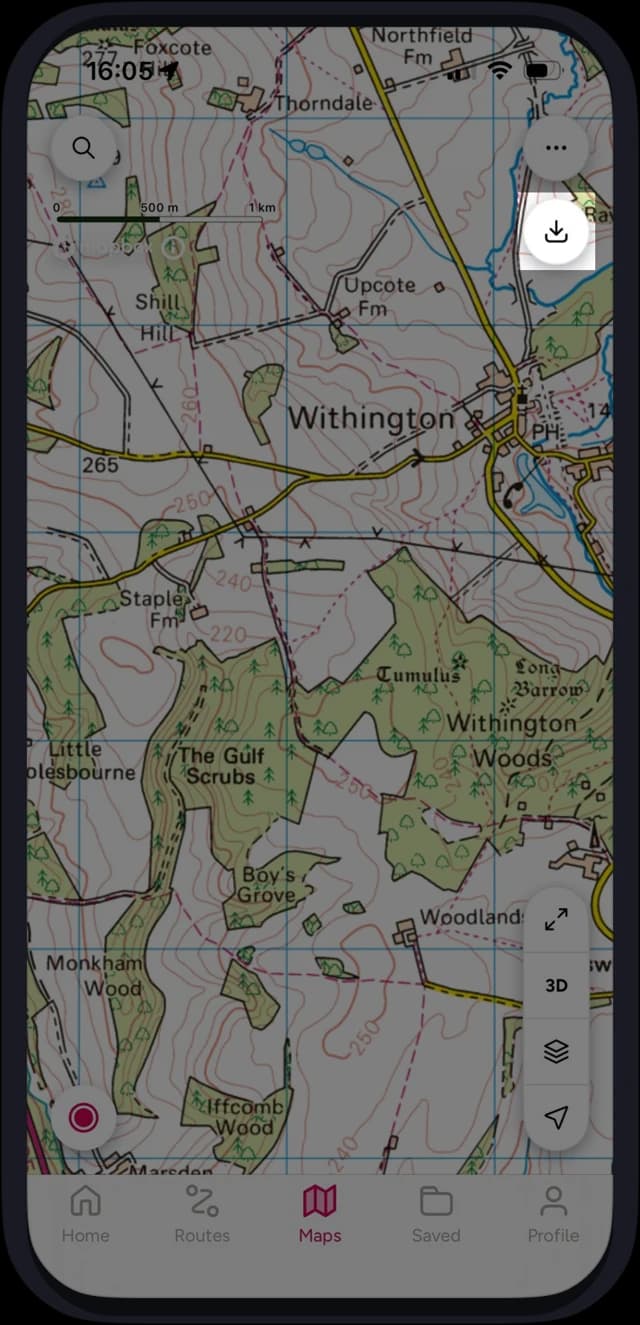
1. Open the Maps tab and move/zoom to the area you want download.
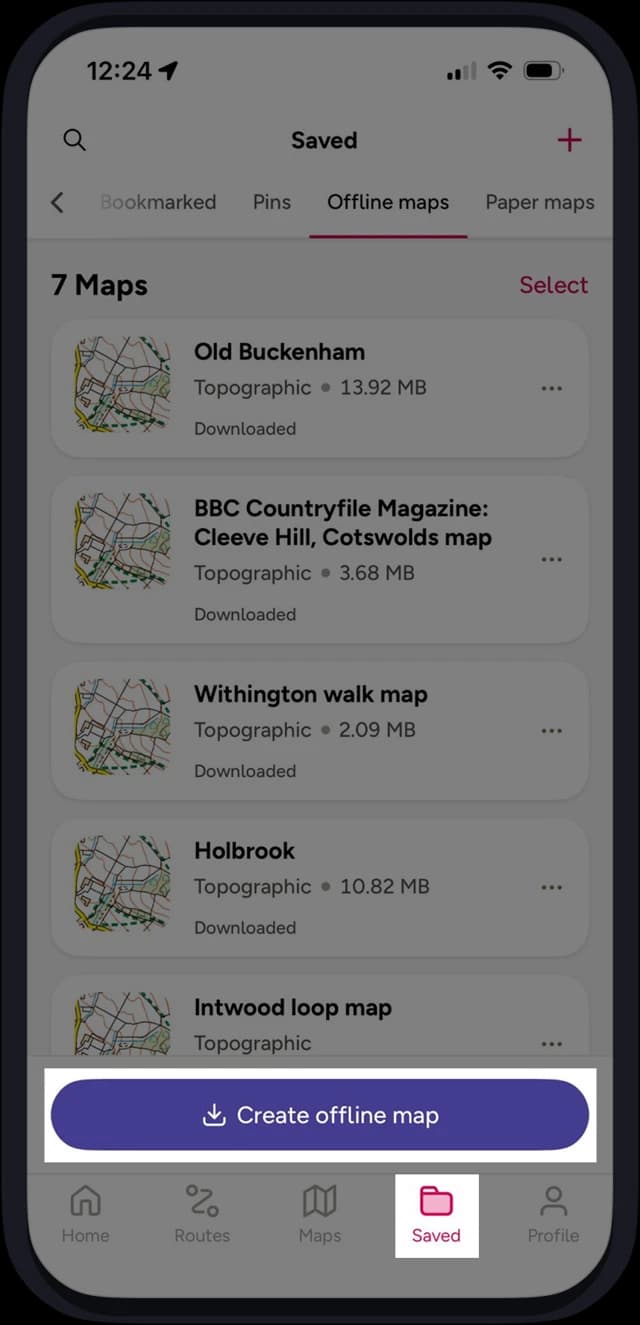
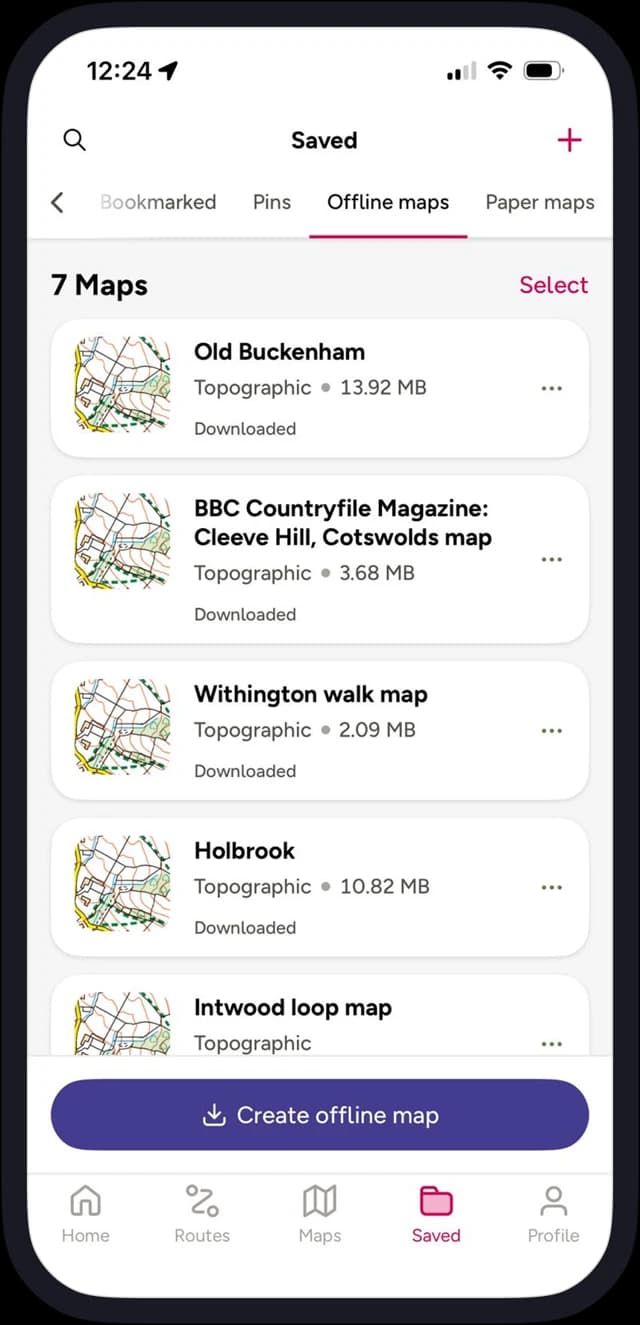
2. Tap Download (top right) OR go to the Saved tab > Offline Map > Create offline map
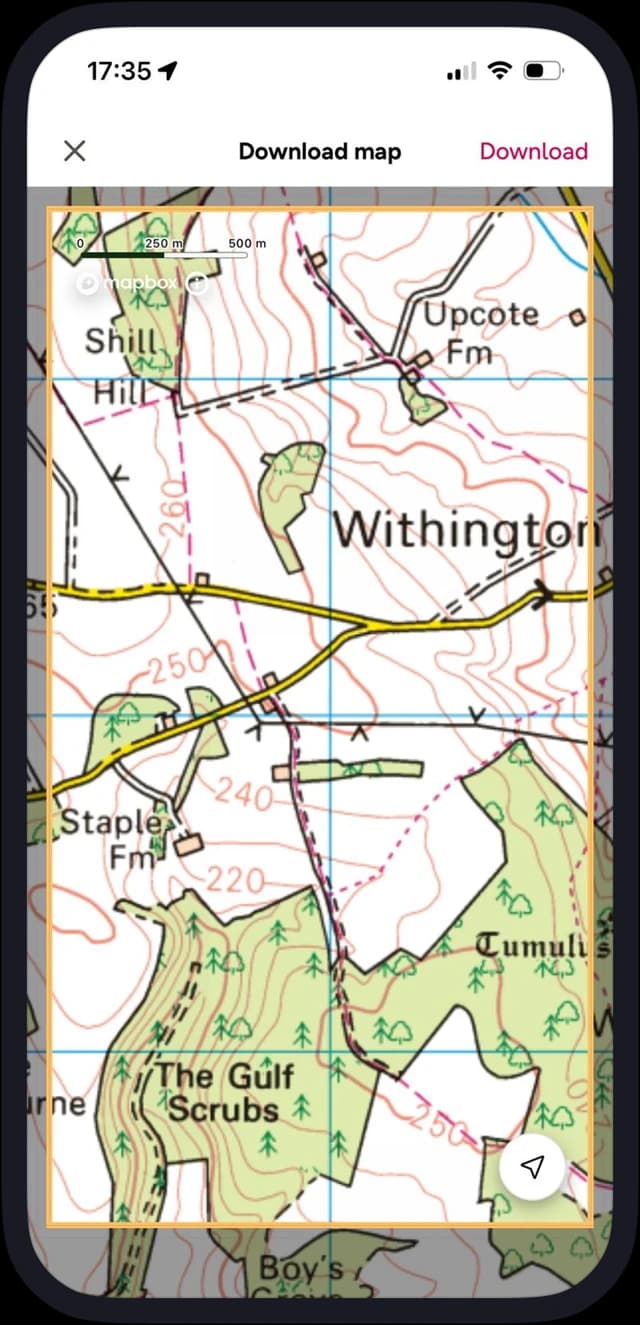
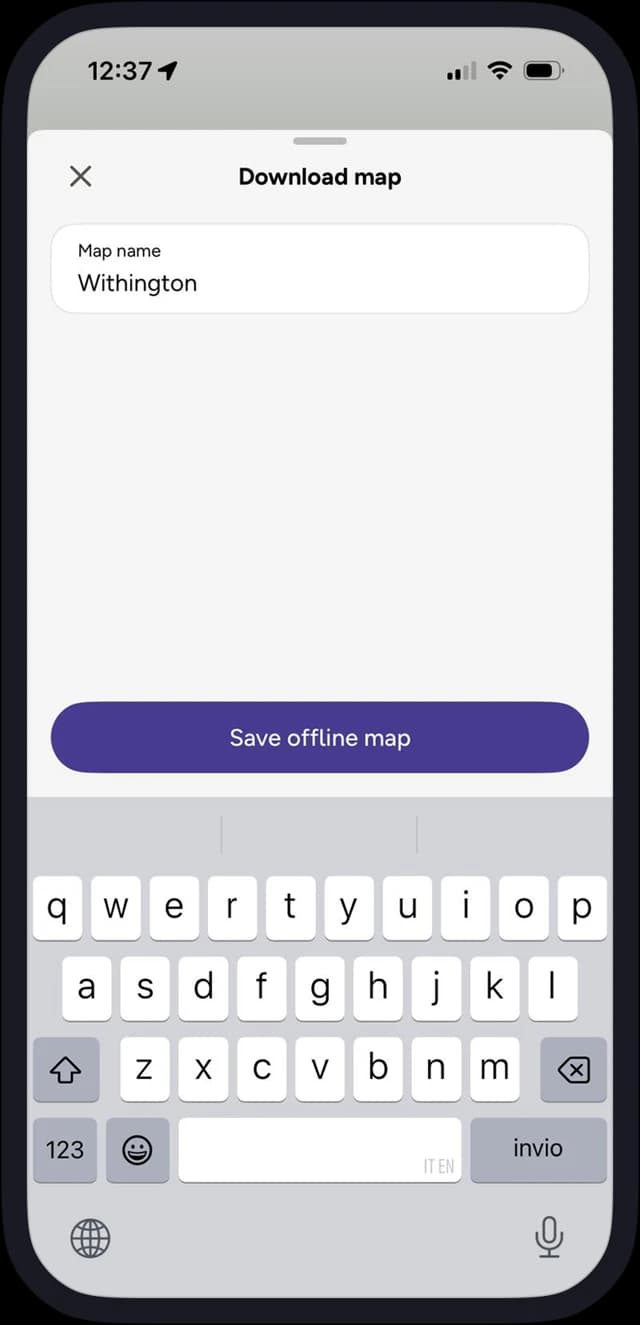
3. Adjust the highlighted area if needed by panning across the map and adjusting the zoom level, then tap Download and name your map.
4. Check download progress in the Saved tab > Offline Maps.
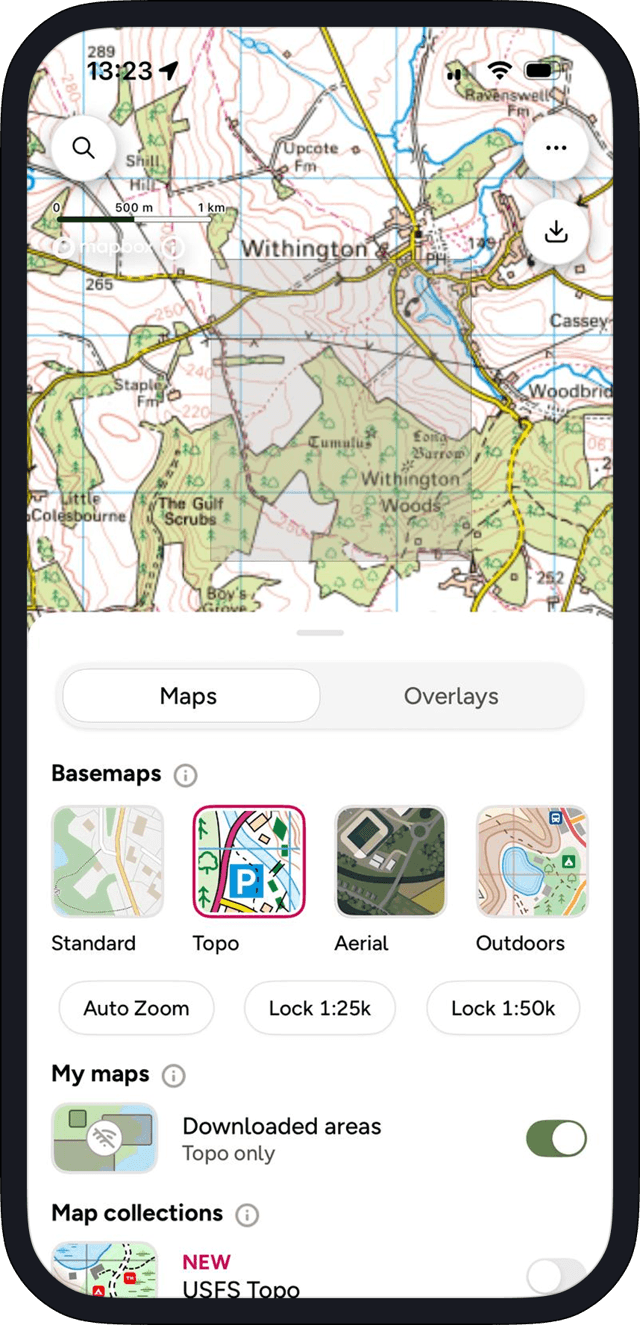
5. View downloaded areas by selecting Maps tab > Maps (stacked squares icon on bottom right of screen) > Downloaded areas > Toggle on
Tip:
Regularly review Offline Maps in the Saved tab and remove ones you no longer need. To test offline, switch your device to Flight Mode and open a saved map.
Download Routes for Offline Use
You can also download routes to follow when you have low or no signal.
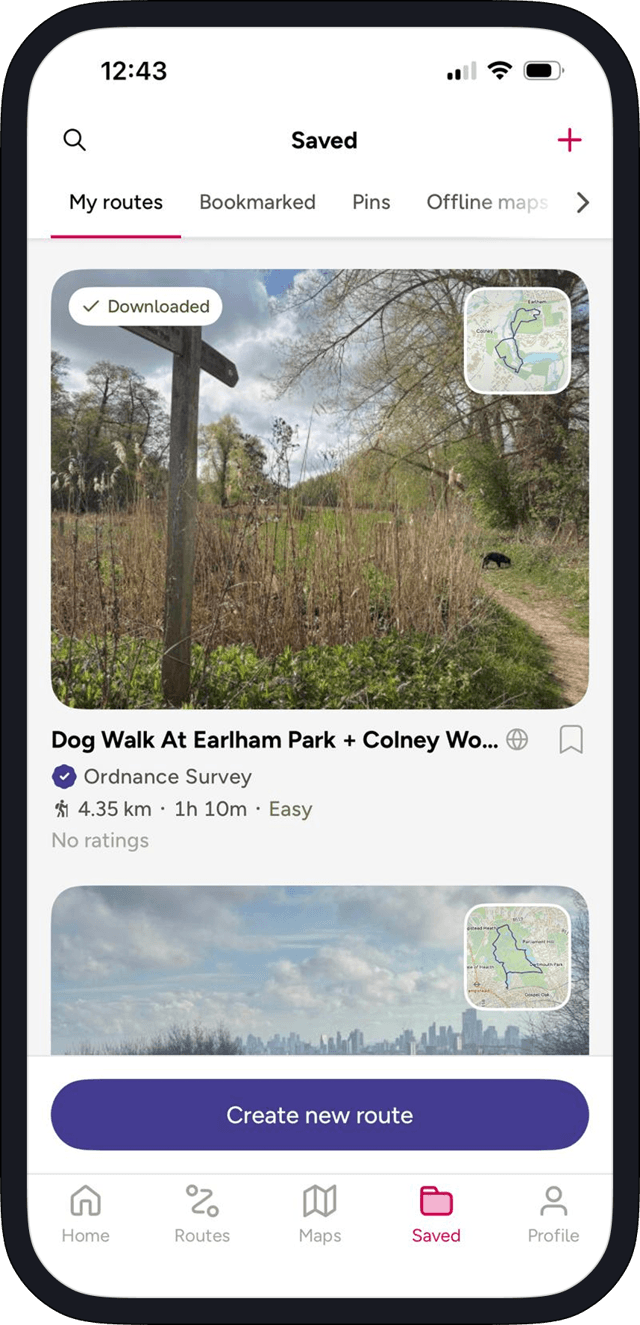
1. In the Routes tab, search for a route or go to Saved > My Routes for ones you created or bookmarked.
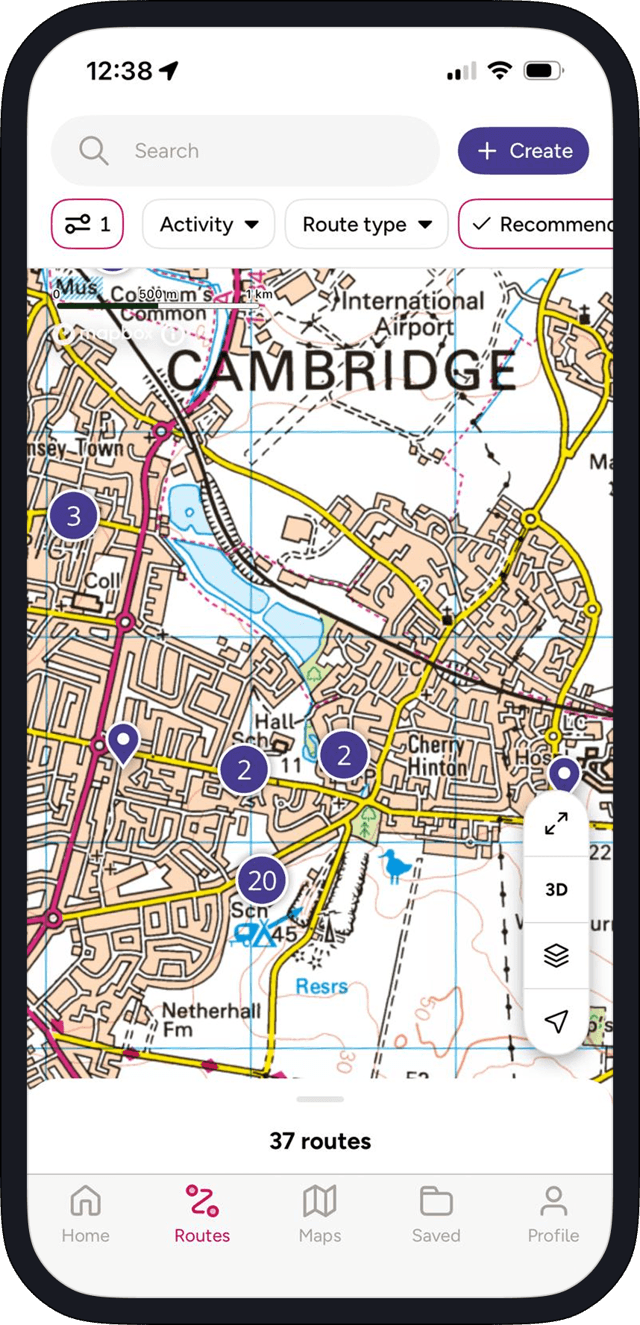
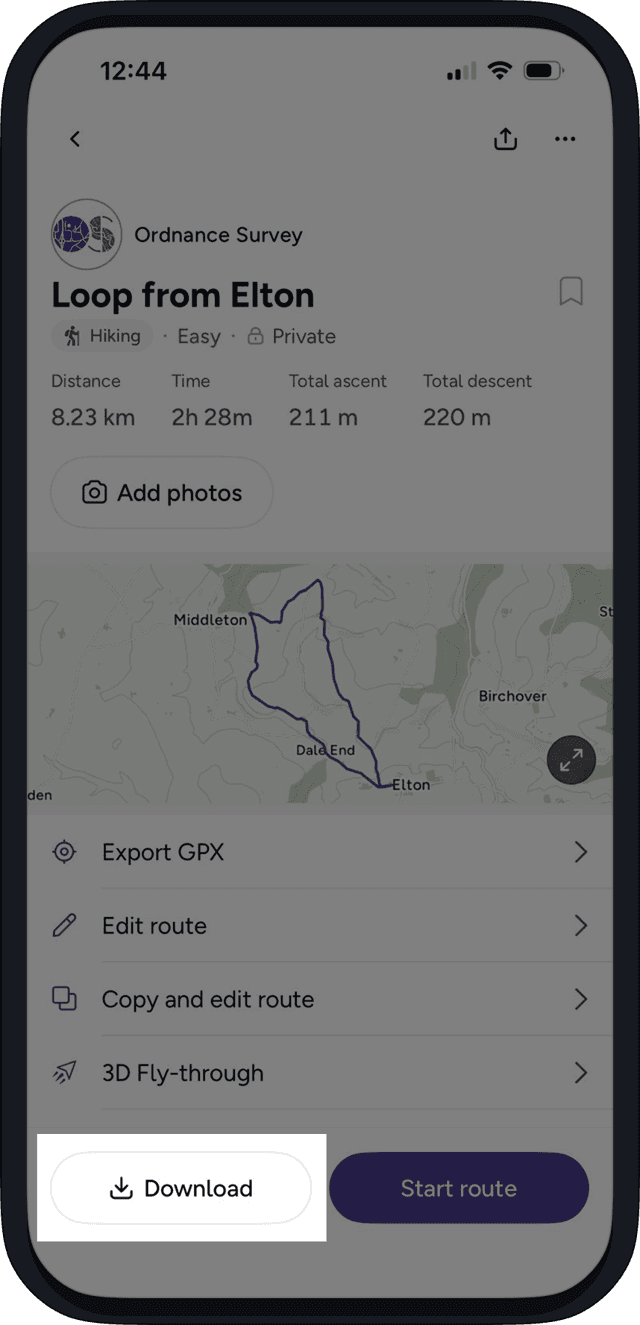
2. Tap a route to open details, then select Download.
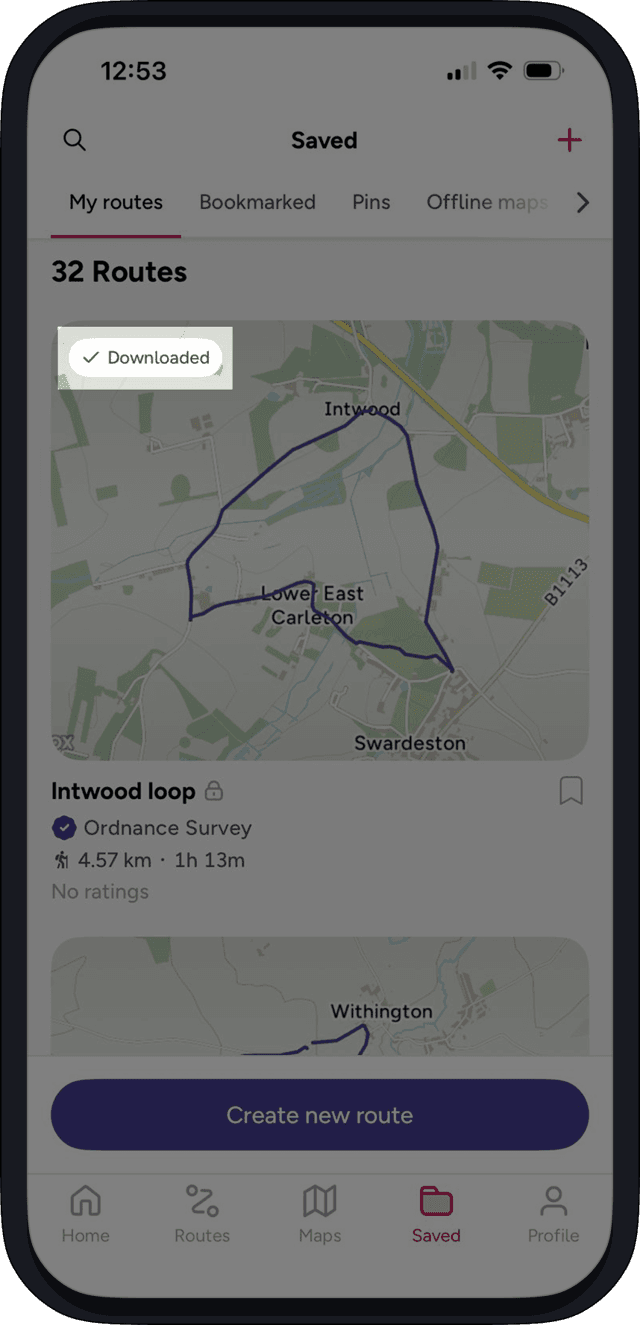
3. As with downloaded maps, you can see all your downloaded routes under the 'Saved' tab. Routes with 'Downloaded' shown in the top left corner are saved to your device and ready to use when you have low or no signal.
Storage tip:
Some devices move downloads to the cloud. In your phone settings, ensure OS Maps stores documents on the device so Offline Maps work without signal.
For more help & support on using OS Maps, head to our FAQ pages where you’ll find the answers to common questions.